
Turn Your PageSpace Docs Into a Support Bot
Your help docs already live in PageSpace. With two connections, a chat API for the conversation and the SDK for your content, they become a support bot on your site and a help center your team runs, with every conversation saved back in PageSpace.
What you'll have when you're done
A support bot on your website that answers customers from your own help docs, with every conversation saved back in PageSpace for your team to read or jump into. You build the chat box; PageSpace handles everything behind it: the AI, the instructions it follows, the search through your docs, and the record of every conversation.
Normally a support bot is a week of work that has nothing to do with support. You pick an AI model and pay to run it. You teach it how to answer and keep those instructions up to date. You build a way for it to search your help articles and pull up the right one, the part most teams find hardest. And you store every conversation somewhere your team can see it. If your help content already lives in a PageSpace drive, all of that is already done.
You connect to it in two ways, and both are worth knowing up front:
- A chat API runs the conversation. It works the same way most AI chat tools already do, so any chat box can talk to it. This powers the live bot.
- The SDK (a small set of ready-made code a developer plugs into your app) handles your content: reading, searching, and editing the docs the bot answers from. This powers the browsable help center and the admin your team uses to keep the docs current.
One drive sits behind both. Here is what that looks like.
See it working
Everything in this guide runs in a small reference app we built on exactly those two connections. Three surfaces, one drive behind them.
Keep one thing in mind as you look: this is your own app, so it can look however you want. The screenshots below are one design we mocked up to show the pieces. Because PageSpace is only the backend, the chat box, the help center, and the admin are entirely your frontend: your layout, your branding, your fonts and colors, your components. Nothing about the look is locked to a PageSpace widget. You build the interface; PageSpace supplies the answers and the content behind it.
Customers ask the bot. A chat box on your site that answers straight from the docs in your drive, appearing word by word as the bot types:
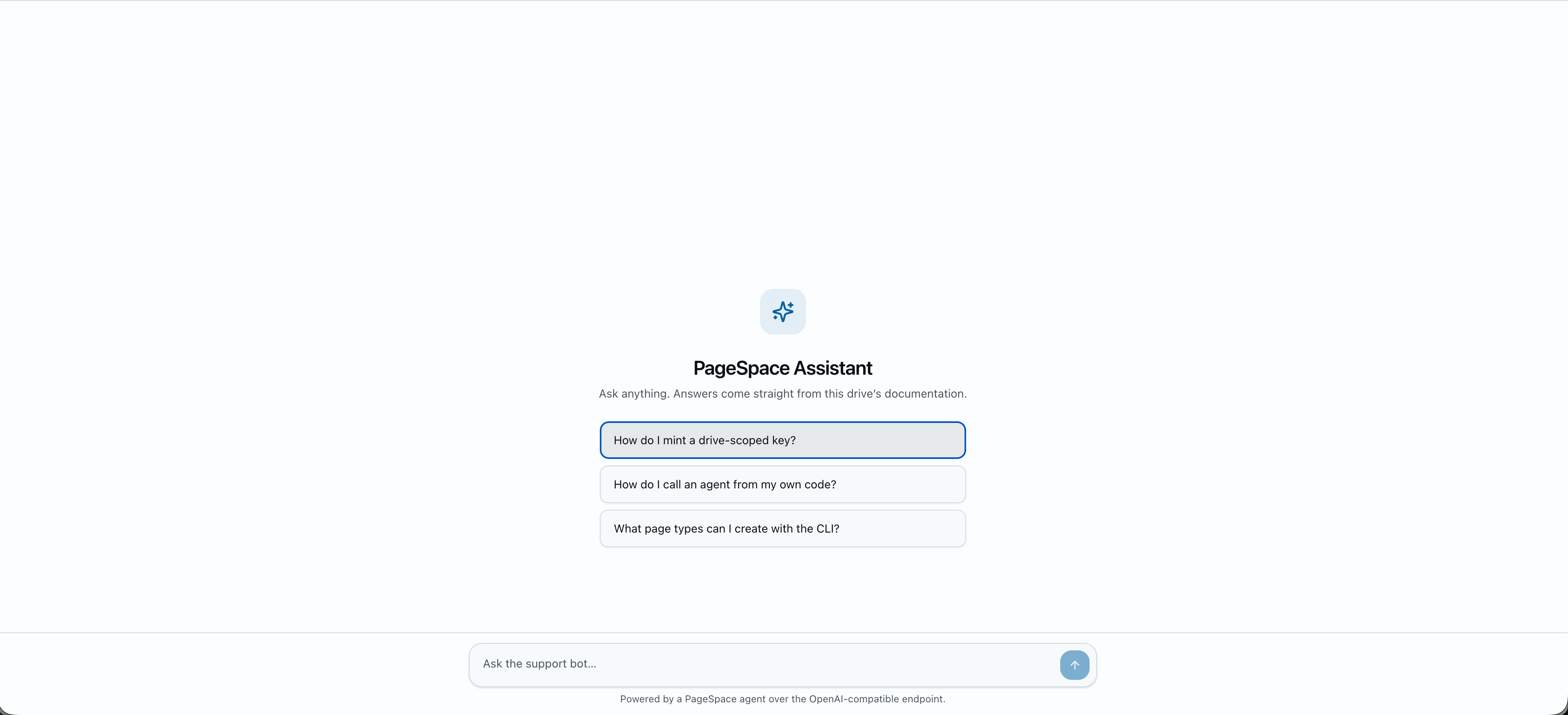
The bot on your site is a PageSpace agent (the AI assistant that reads your docs and answers), working through the chat API. Your website only shows the chat box; the AI, its instructions, and the search through your docs all live in PageSpace.
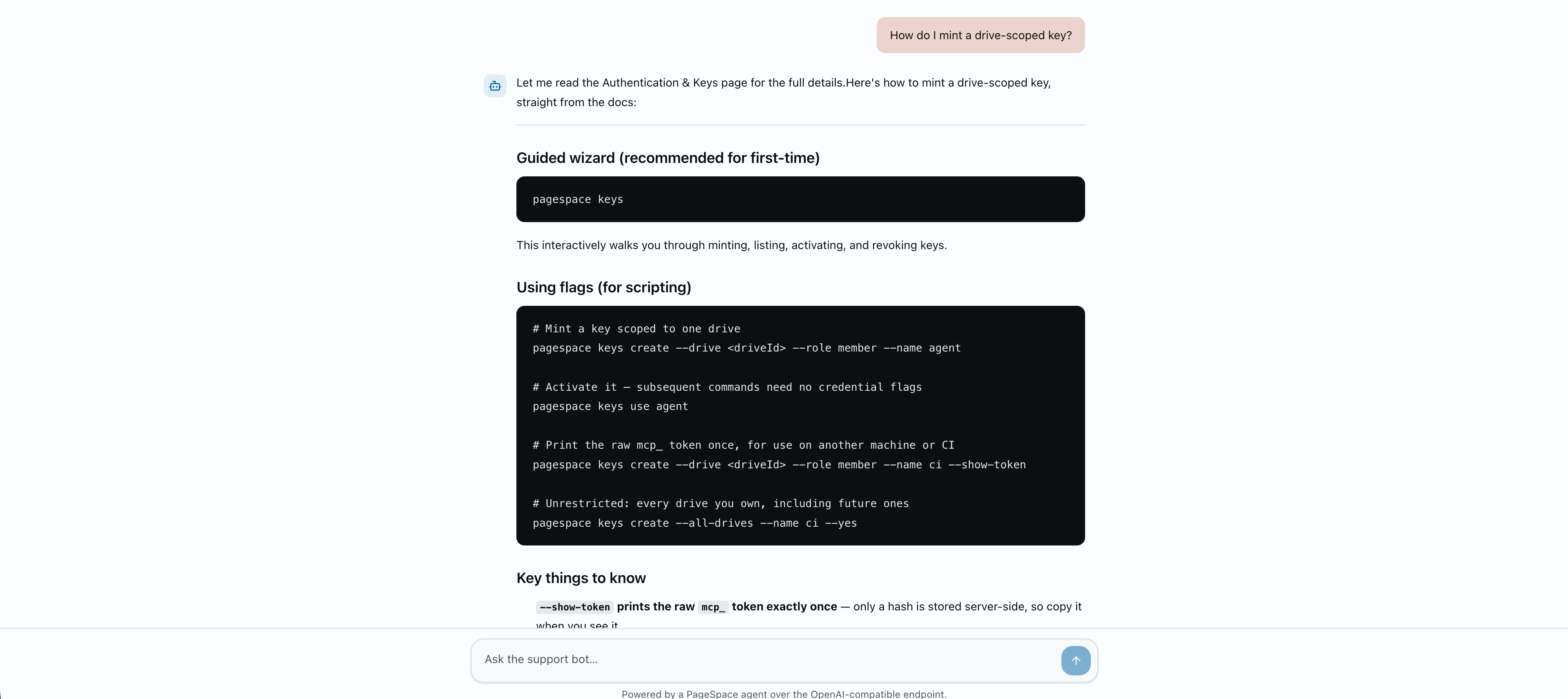
Ask a real question and the bot finds the right help page and answers from it, with the actual steps. You never built the part that searches your docs; the agent reads your drive directly.
Customers browse the same docs. The same pages the bot reads also become a clean, searchable help center customers can browse themselves:
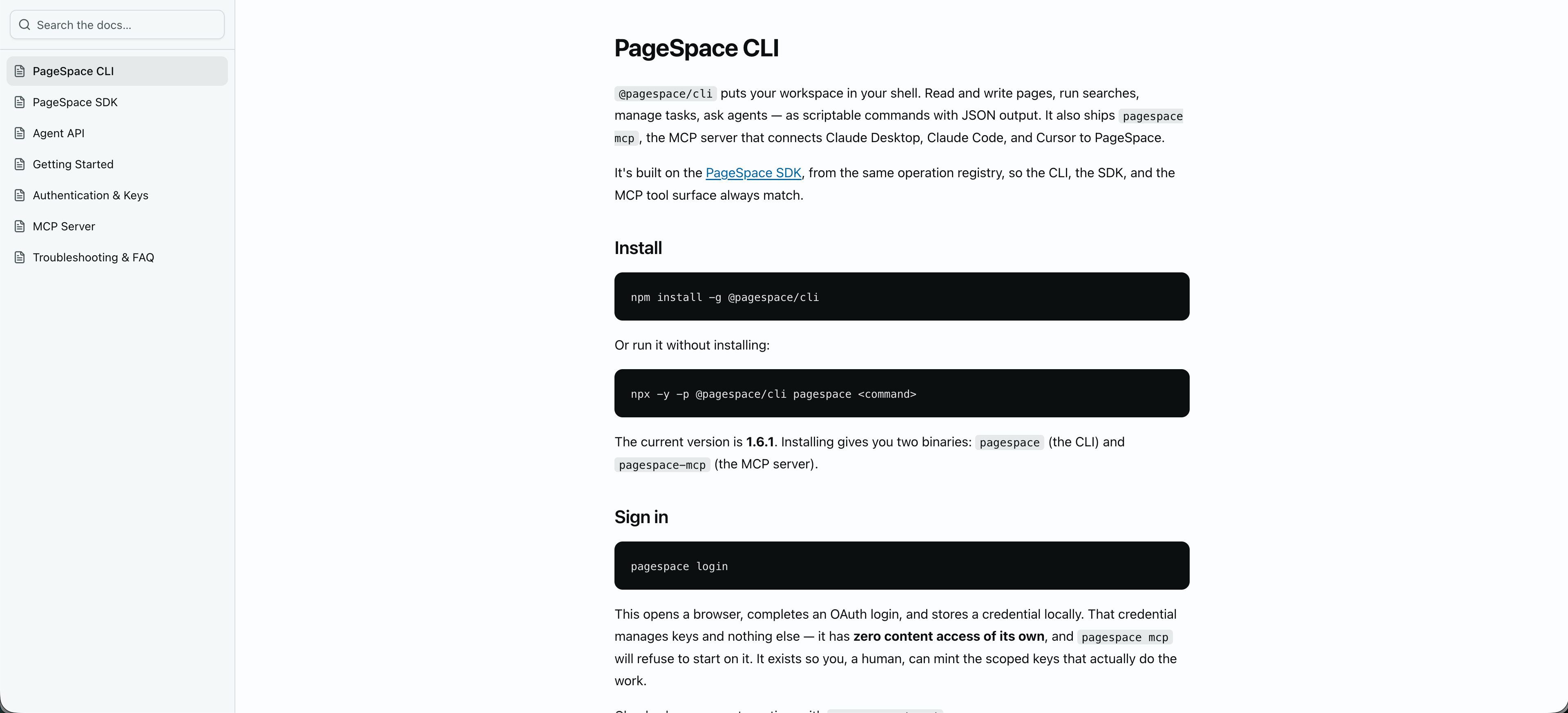
The docs are the single source of truth. The bot and the help center read from the exact same content, so they can never fall out of sync.
You manage the docs in your own admin. The bot's knowledge is just those pages, so a support lead can edit an answer in your own admin screen:
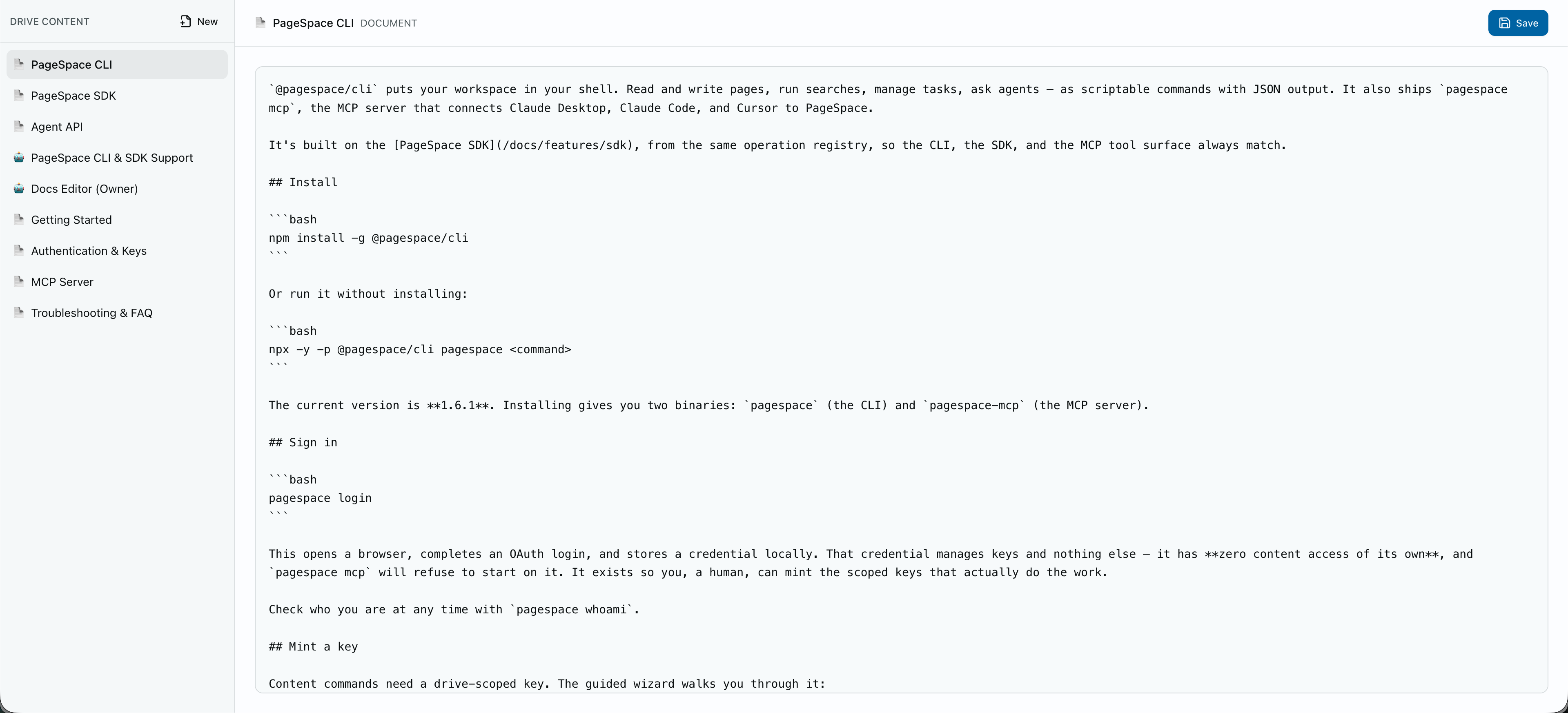
Edit an answer here and the next customer question is answered from the new version. No developer, no redeploy: the docs are the bot's knowledge, and updating them updates the bot.
The help center and the admin above are built with that same SDK. Listing, reading, and searching your docs is a few lines, so a developer can build whatever interface you want on top:
import { PageSpaceClient, StaticTokenProvider } from "@pagespace/sdk";

const ps = new PageSpaceClient({
  baseUrl: "https://pagespace.ai",
  auth: new StaticTokenProvider(process.env.PAGESPACE_TOKEN),
});

const { pages } = await ps.pages.list({ driveId, recursive: true, ls: true }); // the help-center list
const doc = await ps.pages.read({ operation: "read", pageId });                // one page to show
const hits = await ps.search.regex({ driveId, pattern: "reset password", searchIn: "content" }); // the search box
And because the drive is a real PageSpace workspace, you can skip the custom admin entirely and manage everything natively in the app: edit the docs, adjust the bot, and read every customer conversation as a page your team can open.
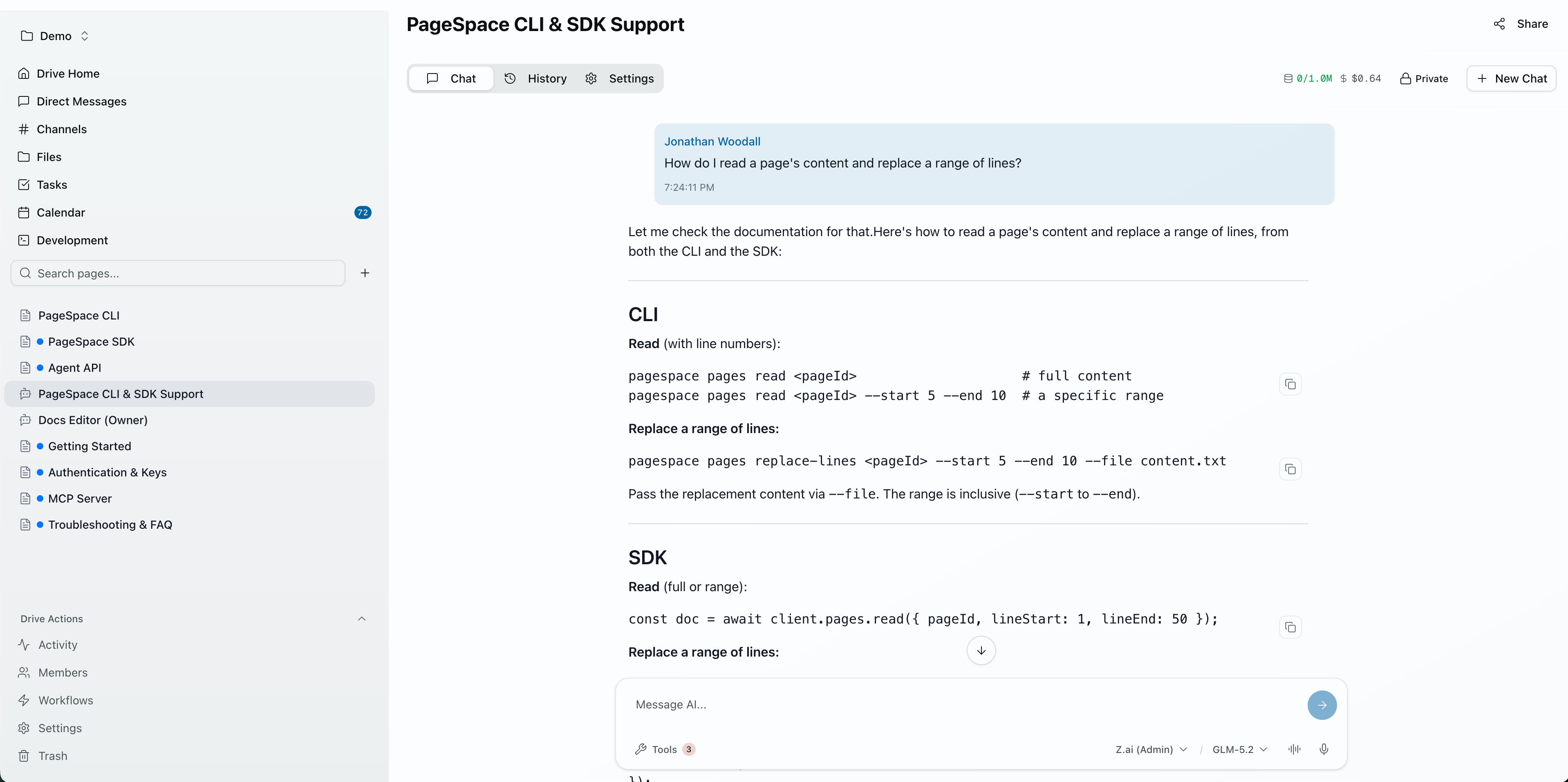
The agent, the docs it reads, and the threads it produces are all pages in one drive. A teammate can open any conversation and take over.
Now let's build it.
Set up the support agent
1. Create the agent in your support drive. An agent is an AI Chat page. Create one and keep the id it returns:
pagespace pages create "Support Bot" AI_CHAT --drive <driveId> --json
# -> { "id": "<agentPageId>", "type": "AI_CHAT", ... }
2. Tell it how to answer, and let it read the drive. An AI Chat page has a system prompt and a set of tools. Set the prompt so it behaves like support:
pagespace agents config <agentPageId> --set systemPrompt="You are the support assistant for Acme. Answer only from the docs in this drive. Be concise and friendly. If the docs do not cover a question, say so and offer to hand off to a human. Never invent product behavior."
A brand-new agent has no tools enabled, which means it cannot actually search or read the drive and will make things up. Turn on the read-only tools so it answers from your docs instead:
pagespace agents config <agentPageId> --set enabledTools='["multi_drive_search","regex_search","glob_search","list_pages","read_page"]'
Pick a specific model the same way if you want one (--set aiModel=<id>, and pagespace models list shows the options), or set all of this in the agent's settings tab in the app. Check your work with pagespace agents list --drive <driveId> --json: it shows the model, whether a system prompt is set, and the enabled tools.
If you would rather point and click, the same settings live on the agent page in PageSpace:
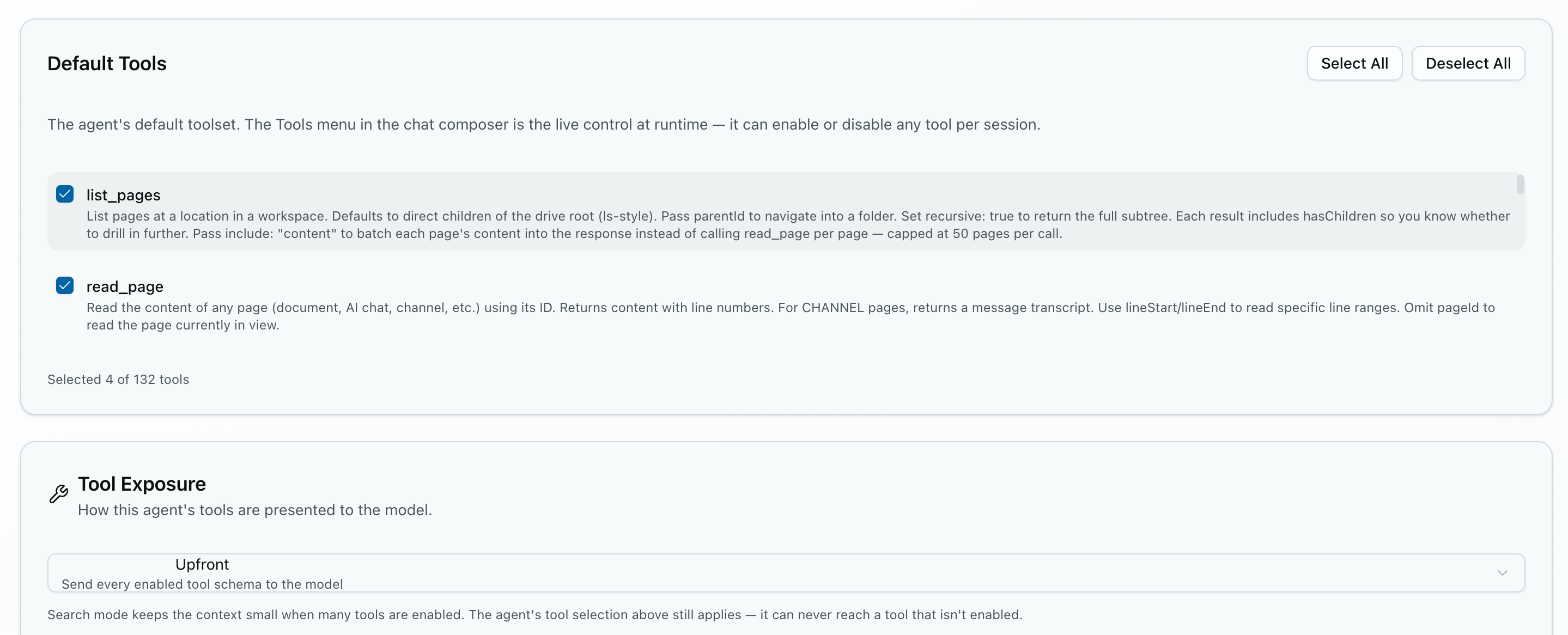
Turn on the read-only search and read tools and nothing else. A support bot should answer from your docs, not write to them.
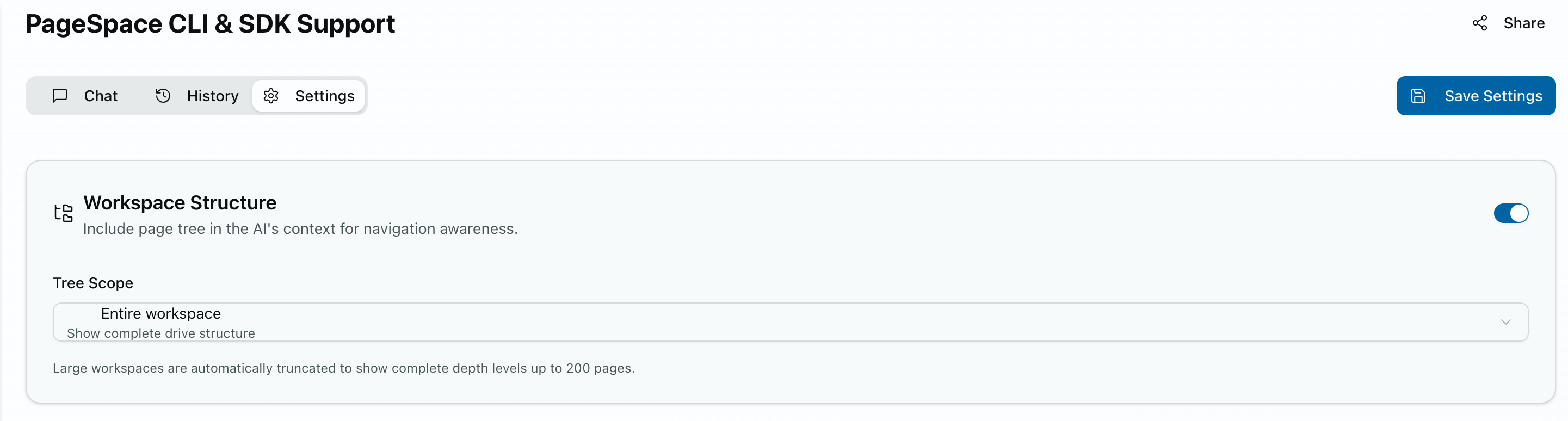
Hand the agent the drive's page tree so it knows what documentation exists before it starts searching.
3. Create a key for your server. The endpoint runs the agent's tools, which need edit access to the page, so create a key that inherits your own access to the drive (leave --role off). A plain member key is view-only on an agent page and would get a 403:
pagespace keys create --drive <driveId> --name support-bot --show-token
# prints PAGESPACE_TOKEN=mcp_... once. Store it as PAGESPACE_TOKEN on your server, never in the browser.
Scope the key to the drive that holds your public help docs and nothing sensitive. If the key cannot see a page, neither can the agent.
Wire it into your site
4. Call the agent exactly like OpenAI. It speaks Chat Completions, so you change three things: the base URL, the key, and the model. The model is your agent, addressed as ps-agent://<agentPageId>:
import OpenAI from "openai";

const client = new OpenAI({
  baseURL: "https://pagespace.ai/api/v1",
  apiKey: process.env.PAGESPACE_TOKEN, // the mcp_ token, server side only
});

const stream = await client.chat.completions.create({
  model: "ps-agent://<agentPageId>",
  stream: true, // the API only streams; stream: false is rejected
  messages: [{ role: "user", content: "How do I reset my password?" }],
});
The agent answers with its own system prompt and runs its own tools on the server. It searches the drive, reads the right doc, and returns the answer, all inside the key's scope. This is the same credential the SDK and CLI use.
5. Stream it to the customer. The response is an OpenAI stream, so a Next.js route handler that pipes it to the browser is a dozen lines:
// app/api/support/route.ts
export async function POST(req: Request) {
  const { messages } = await req.json();

  const stream = await client.chat.completions.create({
    model: "ps-agent://<agentPageId>",
    stream: true,
    messages,
  });

  const encoder = new TextEncoder();
  return new Response(
    new ReadableStream({
      async start(controller) {
        for await (const chunk of stream) {
          const delta = chunk.choices[0]?.delta?.content ?? "";
          if (delta) controller.enqueue(encoder.encode(delta));
        }
        controller.close();
      },
    }),
    { headers: { "Content-Type": "text/plain; charset=utf-8" } },
  );
}
Your chat box sends the conversation so far to that route and shows the reply as it streams in, word by word. That is the bot.
Every conversation lands in PageSpace
A support bot is only half done if the conversations vanish. Pass a conversation_id and the whole conversation is saved in PageSpace: every message is stored, it appears on the AI Chat page in the app, and your support team can read it or open the same thread and reply as a human.
Give each customer session its own conversation_id. Set client_manages_history: true so your app keeps control of the running history and the chat interface. With that flag set, PageSpace creates the thread the first time it is used, owned by your key, and stores every message under it, while your app stays in charge of the chat.
Both fields go on the same create call, right beside messages:
const stream = await client.chat.completions.create({
  model: "ps-agent://<agentPageId>",
  stream: true,
  messages,
  conversation_id: conversationId,   // a fresh id you generate per customer session
  client_manages_history: true,      // your app owns the running history
});
Those last two are extra fields in the request body. The OpenAI client sends them through as-is; they are not part of its built-in types, so a TypeScript app adds a small cast on the object. (Prefer to create threads up front? POST /api/v1/conversations with a drive_id returns an id you reuse.) To let a customer resume where they left off, read the stored messages back:
curl https://pagespace.ai/api/v1/conversations/<conversationId> \
  -H "Authorization: Bearer mcp_your_key_here"
# -> { "messages": [ { "role": "user", "content": "..." }, ... ] }
Refill the chat box from those saved messages and the customer picks up mid conversation. A teammate can open the same thread in PageSpace and take over. The conversation is not trapped in your database. It is a page in the workspace.
Before you make it public
This is the working bot, but not yet locked down for real public traffic. You do not have to build much more, but two things are on you before it goes live.
First, keep the token on your server. The mcp_ key inherits your drive access, so it never belongs in the browser. Your route handler holds it and the customer only ever talks to your route. The examples above already do this.
Second, add rate limiting. The chat API does not limit how often each visitor can send messages. It caps how many calls run at once and stops when your credits run out, but nothing stops one visitor from sending request after request, and every request spends your drive's credits. On a public page that is an open door to drain your balance. Put a limit in the route that sits in front of the chat API: throttle by IP or session, cap messages per minute, and reject anything over the line before it reaches PageSpace. A few lines in the same route handler that already holds the token.
Look at everything you did not have to build: no AI model to choose and pay a separate vendor to run, no instructions to keep up to date in your code (they live on the agent page, editable by your support lead), no search system to build and maintain so the bot finds the right article (the agent reads your drive directly, since the drive is the context), and no database of past conversations (they are already pages in your workspace). You brought a chat box and a key. PageSpace brought the rest. The full technical reference is in the Agent API docs and the SDK docs.